


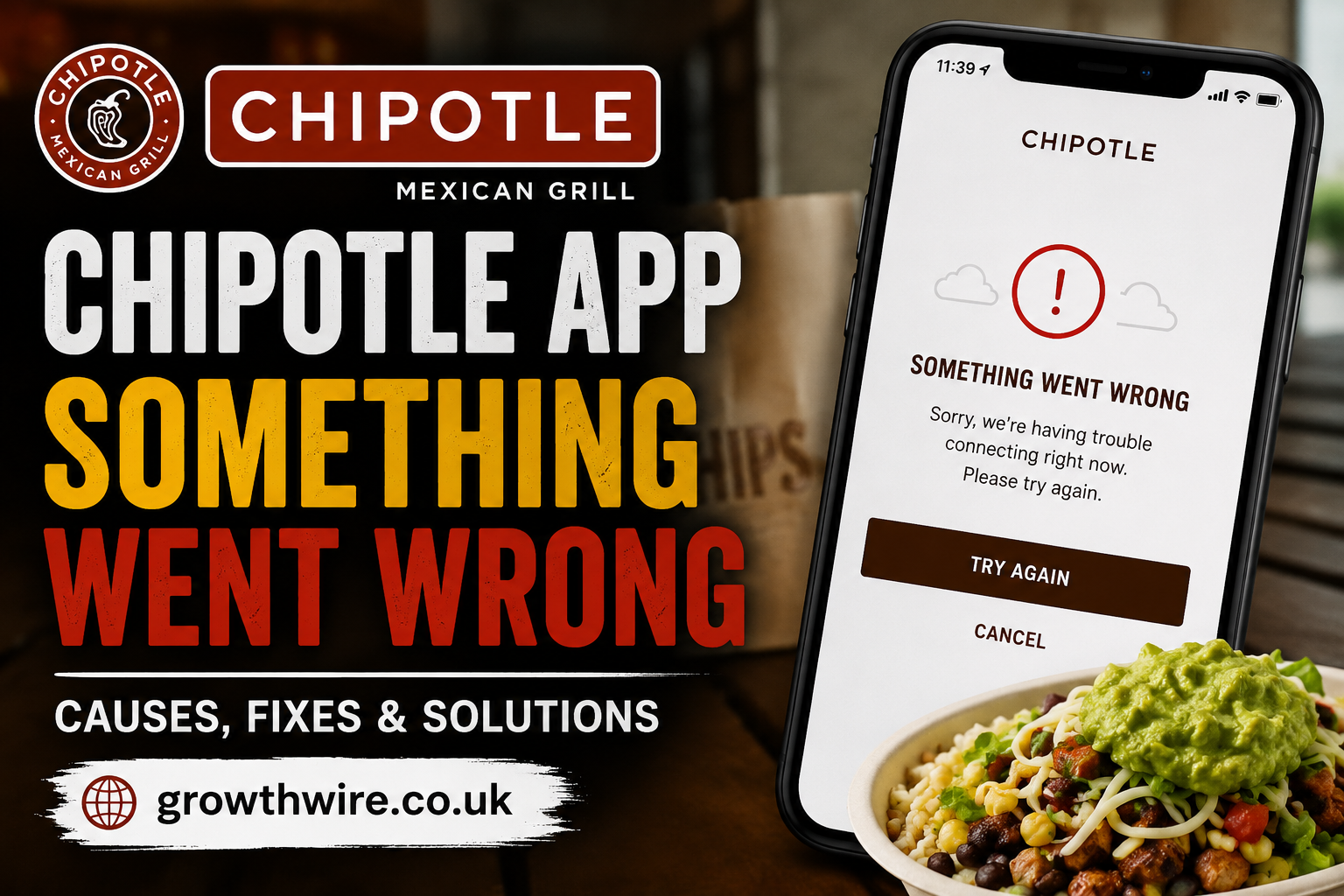
If you have opened the Chipotle app to place an order and suddenly received the message “chipotle app something went wrong,” you are not alone. Error messages like this can appear when the app has trouble connecting to its servers, processing an order, loading your account, accepting a payment, or communicating correctly with your device.
The frustrating part is that the message is usually vague. It does not tell you exactly what failed or whether the problem is with your phone, internet connection, account, payment method, or Chipotle itself. Fortunately, many app errors can be resolved with a few straightforward troubleshooting steps.
This guide explains why the error may appear, what you can do to fix it, how to avoid losing an order, and what to try if the problem continues.
What Does “Chipotle App Something Went Wrong” Mean?
The chipotle app something went wrong message is a general error notification. Rather than identifying one specific technical problem, it can appear when the application cannot complete an action successfully.
For example, you might see the message while:
- Opening the app
- Signing into your account
- Browsing the menu
- Selecting a restaurant
- Adding food to your cart
- Applying a promotion
- Checking out
- Choosing a payment method
- Placing an order
- Viewing previous orders
- Using rewards
- Updating account information
Because the message covers several possible situations, the best solution depends on what you were doing when the error occurred.
In many cases, the problem is temporary. Closing and reopening the app may be enough. Other situations require updating the application, checking your internet connection, clearing stored data, or trying another ordering method.
Why Does the Chipotle App Something Went Wrong Error Appear?
There is no single cause behind this message. Mobile applications rely on several systems working together, so a failure in any one of them can interrupt the experience.
1. Temporary Server Problems
Sometimes the application itself is working correctly, but the service behind it is temporarily unavailable or experiencing unusually high traffic.
When servers are busy, requests from the app may fail. This can happen during lunch and dinner rushes, promotions, holidays, or other periods when many customers are ordering simultaneously.
If everything worked normally earlier and suddenly stops working, a temporary service issue is worth considering.
2. Weak or Unstable Internet
A poor internet connection can also produce a generic error.
Your phone may show that it is connected to Wi-Fi, but the connection could still be slow or unstable. Mobile data can have similar problems, particularly in areas with weak coverage.
Try opening another website or application. If other services are also struggling, your connection may be the underlying problem.
3. Outdated App Version
Apps are regularly updated to fix bugs, improve security, and maintain compatibility with operating systems and backend services.
If you are using an older version, certain features may stop working correctly. An outdated application can therefore contribute to the chipotle app something went wrong message.
Checking your device’s app store for an available update is one of the easiest troubleshooting steps.
4. Corrupted Temporary Data
Applications store temporary information to help pages load faster and preserve certain settings.
Occasionally, this stored data can become corrupted or conflict with a newer version of the application. When that happens, the app may behave unexpectedly.
Restarting the app can help. On some devices, clearing the app’s cache can also resolve persistent problems.
5. Account or Login Problems
If the error occurs specifically when you attempt to sign in, your account session could have expired or become invalid.
Logging out and signing in again may refresh the session. In other cases, resetting your password or checking account details may be necessary.
6. Payment Problems
Checkout introduces another layer of complexity. A payment can fail because of an expired card, incorrect billing information, bank restrictions, insufficient funds, or a temporary payment-processing issue.
Sometimes the app responds with a general error rather than clearly explaining the payment problem.
7. Restaurant Availability
The selected Chipotle location may temporarily stop accepting digital orders. This can happen because of operating hours, unusually high demand, staffing issues, equipment problems, or other restaurant-specific circumstances.
If the app works normally until you select a particular restaurant, the location may be contributing to the problem.
How to Fix the Chipotle App Something Went Wrong Error
Before making major changes to your account, start with the simplest solutions. Many temporary application problems disappear after restarting the app or reconnecting to the internet.
Restart the Chipotle App
Completely close the application rather than simply minimizing it.
On most phones, open the recent-apps screen and swipe the Chipotle application away. Wait several seconds and launch it again.
This forces the application to establish a fresh session and can resolve temporary glitches.
Check Your Internet Connection
Switch between Wi-Fi and mobile data if both are available.
For example, if the application produces an error while connected to Wi-Fi, temporarily disable Wi-Fi and try using cellular data. If the problem disappears, your internet connection may have been responsible.
You can also restart your router if other applications are experiencing connectivity problems.
Restart Your Phone
A complete device restart can solve surprisingly many app problems.
Restarting clears temporary system processes and gives applications a fresh environment. If the error appeared after your phone had been running for a long time, this is a simple step worth trying.
Update the App
Open the app store on your device and search for Chipotle.
If an update is available, install it before trying to place your order again.
Keeping the application updated is particularly important when an error begins appearing after an operating-system update.
Clear the App Cache
Android users can generally clear an application’s cache through the device settings.
The exact menu names vary by phone, but the process usually involves opening Settings, finding Apps, selecting Chipotle, opening Storage, and choosing the option to clear cached data.
Be careful not to delete account information unless you understand what the option does. Clearing cache and clearing all application data are not always the same thing.
On iPhone, there is not generally a universal “clear cache” button for individual apps. If restarting the app does not help, reinstalling it can provide a similar clean start.
Sign Out and Sign Back In
If the problem seems related to your account, sign out of the application and then log back in.
This can refresh authentication information and remove an expired session.
If you cannot sign in at all, avoid repeatedly entering passwords if you are uncertain about your credentials. Instead, use the appropriate password recovery process.
Check Your Order Details Carefully
If the error occurs during checkout, review everything in your cart.
Check:
- Selected restaurant
- Pickup or delivery option
- Order items
- Customizations
- Promo codes
- Rewards
- Payment method
- Delivery information, when applicable
A problematic promotion or unavailable menu item can sometimes prevent checkout from completing.
Removing a promotional code or changing an unavailable item may allow the order to proceed.
Try Another Restaurant
If the app works normally but fails when you choose one specific restaurant, try selecting another nearby location.
This can help determine whether the problem is account-wide or associated with a particular restaurant.
If another location loads correctly, the original restaurant may be temporarily unable to accept digital orders.
Try the Chipotle Website
When the mobile app refuses to cooperate, another useful test is to attempt your order through Chipotle’s website.
If the website works while the app does not, the issue is more likely related to the application or device.
If both the app and website fail in the same way, a broader service or account issue becomes more likely.
What to Do if the Error Appears During Payment
Payment-related errors deserve extra attention because you do not want to accidentally submit the same order multiple times.
If the app displays an error immediately after you tap the final order button, first check whether you received an order confirmation.
Look for:
- An order confirmation screen
- Confirmation email
- Order history entry
- Bank or card authorization
- Notification from your payment provider
Do not immediately place the same order again simply because the app displayed an error.
A payment may occasionally be authorized even though the application fails to display the expected confirmation.
Check Your Bank or Card Activity
If you see a pending transaction, do not automatically assume that a completed order exists.
A pending authorization and a finalized purchase are different things. If there is no corresponding order confirmation, contacting the appropriate support channel can help determine what happened.
The important thing is to avoid creating duplicate orders while trying to recover from an uncertain checkout.
Why Does the Error Happen at Checkout?
Checkout is one of the most complicated parts of an ordering application.
Before an order can be submitted, the system may need to verify restaurant availability, menu inventory, prices, promotions, account information, rewards, payment details, and order timing.
If any component changes between the moment you build your cart and the moment you submit it, checkout can fail.
For example, a menu item could become unavailable while you are browsing. A restaurant could temporarily stop accepting online orders. A promotional offer could expire. Your payment authorization could also fail.
This is why restarting the entire ordering process sometimes works when simply tapping the checkout button repeatedly does not.
Fixing Login Problems
If the chipotle app something went wrong message appears while logging in, start by checking that your email address and password are correct.
If you recently changed your password, make sure you are using the newest credentials.
You can also try logging in through the website. If website login works but mobile login fails, reinstalling or updating the app may help.
If neither method works, the problem may be associated with your account rather than your phone.
Reinstall the Chipotle App
Reinstalling the application is one of the more thorough troubleshooting steps.
First, remove the app from your device. Then install the latest available version from the official app store.
After installation, open the application and sign in again.
Before doing this, make sure you know your account credentials. Reinstalling the application does not mean your account itself has been deleted, but you may need to authenticate again.
Make Sure Your Phone Has Enough Storage
Although less common, very limited device storage can cause applications to behave unpredictably.
Check your phone’s available storage and remove unnecessary files or applications if space is extremely low.
After freeing storage, restart the device and try opening the application again.
Disable a VPN Temporarily
If you use a VPN, it can sometimes interfere with how an application communicates with online services.
As a troubleshooting test, temporarily disable the VPN and reopen the app.
If the application works afterward, the VPN connection or server configuration may have been contributing to the problem.
You can then investigate whether changing the VPN server or network settings resolves the issue without completely disabling the service.
Check Your Device’s Date and Time
Incorrect device date or time settings can occasionally cause authentication and secure connection problems.
Most phones have an automatic date-and-time option. Enabling automatic time synchronization can help ensure that the device is using the correct settings.
This is not the most common explanation for the error, but it is a simple setting to verify when other solutions have failed.
What If Nothing Fixes the Error?
If you have restarted the app, checked your connection, installed updates, and tried another ordering method but still see the message, the issue may be outside your control.
A temporary service problem may be affecting ordering systems.
In that situation, waiting a little while and trying again may be more effective than repeatedly reinstalling the application.
If the problem persists for an extended period, contact Chipotle’s official customer support and provide useful details about the failure.
Include information such as:
- Device type
- Operating-system version
- App version
- Approximate time of the problem
- What you were trying to do
- Exact wording of the error
- Whether the website works
- Whether another restaurant works
- Whether your payment was charged or authorized
Avoid sharing passwords, full card numbers, or other sensitive account information.
How to Tell Whether Chipotle Is Having a Larger Problem
One of the most useful troubleshooting questions is whether the problem affects only you or many customers.
If your internet works normally, your app is updated, and multiple features fail simultaneously, a broader service problem becomes more plausible.
You can also check official Chipotle communication channels or reputable outage-reporting services for signs of widespread disruption.
If many customers are reporting similar problems at approximately the same time, repeatedly changing settings on your phone may not accomplish anything.
Waiting for the service to recover can be the best approach.
Can Deleting the App Fix the Problem?
Sometimes.
Deleting and reinstalling the app removes the local installation and replaces it with a fresh copy. This can fix corrupted application files or problems caused by an incomplete update.
However, reinstalling is not a guaranteed solution for server-side outages, payment problems, or account-specific issues.
That is why it is better to try basic troubleshooting first.
Preventing Future App Problems
You cannot prevent every application outage, but a few habits can make digital ordering smoother.
Keep your phone’s operating system and applications reasonably up to date. Maintain a stable internet connection when placing important orders. Avoid waiting until the last possible moment to order if you have a strict pickup time.
It is also helpful to keep your payment information current. Expired cards and outdated billing details can create unnecessary checkout problems.
If a particular promotion is causing errors, try completing the order without it. You can then determine whether the promotion itself is responsible.
Should You Keep Trying the Order?
That depends on where the error appears.
If the app crashes before you enter payment information, retrying after restarting the app is generally straightforward.
If the error appears after you submit payment, slow down.
Check whether the order exists before trying again. This reduces the risk of accidentally creating duplicate charges or duplicate food orders.
If you see a pending card transaction but cannot find an order confirmation, contact customer support before repeatedly submitting the order.
Chipotle App Troubleshooting on iPhone
For iPhone users, a practical sequence is:
- Force-close the application.
- Reopen it.
- Check Wi-Fi or mobile data.
- Restart the iPhone.
- Check the App Store for an update.
- Sign out and sign in again.
- Try the website.
- Reinstall the app if necessary.
If the application continues producing the same message after a fresh installation, the problem may not be stored locally on the phone.
Chipotle App Troubleshooting on Android
Android users can follow a similar process:
- Force-stop the application.
- Reopen it.
- Check the internet connection.
- Restart the phone.
- Update the app.
- Clear its cache.
- Check account credentials.
- Reinstall the app if necessary.
- Test the website.
Because Android devices vary considerably between manufacturers, the exact settings used to clear an app cache can differ.
When the Error Is Probably Not Your Phone
A useful troubleshooting principle is to look for patterns.
If the app fails on both Wi-Fi and mobile data, continues failing after an update, and behaves the same way after reinstalling, the issue may not be related to your device.
Likewise, if the website also fails or multiple restaurants are unavailable, a broader service problem is more likely.
At that point, changing phone settings repeatedly is unlikely to help.
Frequently Asked Questions
What does the Chipotle app something went wrong message mean?
It is a general error indicating that the app could not complete an action. It can result from connectivity problems, app bugs, account issues, payment failures, restaurant availability, or temporary service disruptions.
Why won’t my Chipotle app let me order?
Several factors can prevent ordering, including an unstable connection, outdated app, unavailable restaurant, unavailable menu item, payment problem, or temporary service issue.
Should I reinstall the Chipotle app?
Reinstalling can help when local application files or cached information are causing problems. Try restarting and updating the app first.
Why does Chipotle work on the website but not in the app?
If the website works normally, the problem may be specific to the mobile application, its stored data, or its compatibility with your device.
What if I was charged but received an error?
Check your order history and confirmation messages before placing another order. If you cannot determine whether the order went through, contact customer support to avoid creating a duplicate order.
Can poor Wi-Fi cause the error?
Yes. An unstable or slow connection can prevent the application from communicating correctly with its online services.
Why does the error happen only at one restaurant?
That may indicate a restaurant-specific issue, such as temporary digital-order restrictions, high demand, operating hours, or local availability.
Final Thoughts
Seeing chipotle app something went wrong can be frustrating, especially when you are hungry and simply want to place an order. Fortunately, the message does not necessarily mean that your account or phone has a serious problem.
Start with the easiest solutions: close and reopen the app, check your connection, restart your device, and install any available update. If the problem continues, sign in again, clear cached data where appropriate, try another restaurant, or use the website as an alternative.
Most importantly, be careful when the error appears after payment submission. Always check for an order confirmation or pending transaction before trying again.
If none of the standard troubleshooting methods work, the issue may be temporary or related to Chipotle’s online services. In that case, waiting and trying again later—or contacting official support—may be the most practical solution.
By approaching the problem systematically, you can usually determine whether the cause is your device, connection, account, payment method, restaurant, or the service itself and get back to ordering with as little frustration as possible.
